
Search
When you open the Search window, Showell will provide you with recommended files based on your previous file and folder activity. You will also see a list of your recently viewed items, making it easy to find what you're looking for.
By providing your search terms, our powerful search feature scans through folders, files, and document content to quickly give you relevant results.
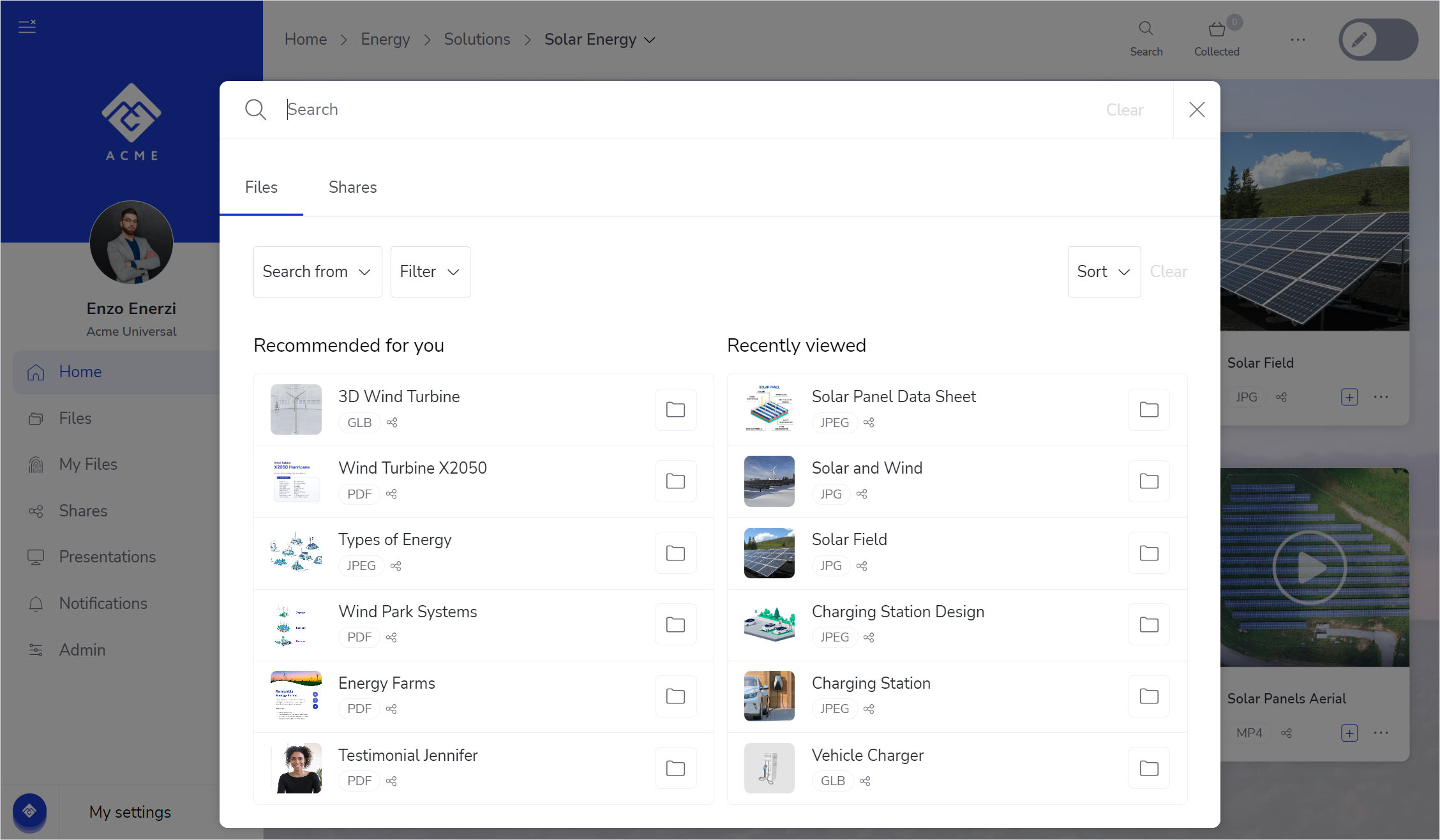
- In the Showell App, click Search from the top navigation bar.
- Type your search term. You can search for things such as a file title, a keyword found inside a document, a Share recipient’s email address, the subject or message of a Share, or the name of a presentation.
- Use the tabs to choose where you want to search. Depending on the selected tab, different filter and sort options are available:
- In the Files tab, you can search through files in your workspace. Use "Search from" to choose the location you want to search in, or use "Filter" to narrow your results by file type, keywords, or languages. You can also "sort" the results in the way that works best for you.
-
In the Shares tab, you can search for Shares and narrow the results using quick filters. For example, you can "filter" by active or expired Shares, recently visited Shares, team collaborators, or Share recipients. You can also "sort" the results as needed.
-
In the Presentations tab, you can search for presentations you have created yourself, as well as presentations created by administrators that are available from the main workspace content.
💡 For files and presentations, click the "folder"-icon to reveal the file path or location. You can also click the "three-dot menu" to access quick actions, such as sharing the item or adding it to your collected items.
💡 FAQ
Can I search inside a document?
Certainly! Showell has the ability to search within documents to locate the specific search term you are seeking. You'll find the search option in the top-right corner, after opening a file./Search%20in%20Document.webp?width=350&height=44&name=Search%20in%20Document.webp)
Can I search for exact matches in the search results?
To ensure you find exactly what you need, enclose your search term in quotation marks ("term"). This will help narrow down the results and provide more accurate matches.
How do I know the path/location of a document I searched for?
You can click the folder icon next to the document in the search results, or you can open the document and click its name in the top menu bar. This action will display the document's path/location and additional information.
Can I use AI to find answers in Showell?
Yes. Alongside search, Showell offers the Showell AI Assistant: an AI chat that finds content and answers for you. Click the 'AI' icon next to Search, then ask your question in natural language, just like you'd ask a colleague.

Showell AI locates the most relevant content and gives you a well-formulated answer, even when the information is buried deep within a document. You can ask follow-up questions, and every conversation is saved to your chat history so you can revisit it anytime.