
How to write notes
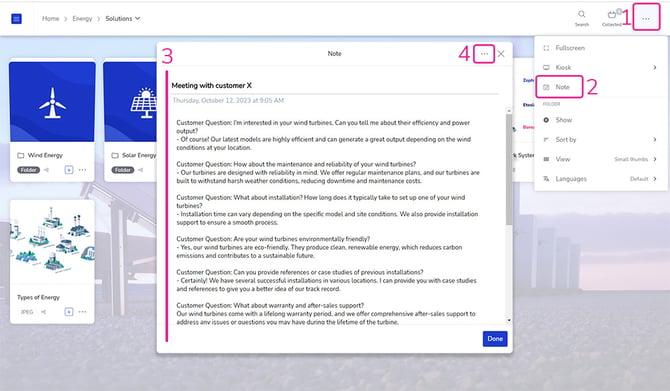
- Open the Showell App and, from any place that contains files (such as your Workspace files, My Files, or within a file itself), navigate to the top menu bar > 3 dots
- Click Note
- Write your note title and notes
- Additional options under the 3 dots in the top right corner of 'Note'
- New: write a new note
- My notes: find and navigate between different notes
- Share: share your notes via email
- Remove: Delete your note
💡 FAQ
Can I access Notes at any time?
You have the flexibility to access your notes at any time in Showell, whether you are browsing through your content, working within a document, or showcasing your presentation.
Can Administrators view my notes?
Notes can only be viewed by the person who wrote them.